Demo Prompt
Demo Prompt is the fastest way to try Knowledge.Dev if you already use an AI coding agent and want a lightweight preview.
What It Is
The demo prompt is a minimal entry path for trying Knowledge.Dev without going through the full local playground workflow first.
It is useful when you want to quickly experience the teaching style and interaction pattern before setting up the launcher and MCP server.
When to Use It
- Use it when you want the fastest possible first contact
- Use it when you already have an AI agent open and ready
- Use the full playground workflow when you want guided progress, local state, and the complete lesson experience
How to Use It
Follow the minimal steps below and you can start writing real code in about a minute.
Step 1. Create a New Folder
Create a separate folder for the demo playground.
This keeps the playground workspace isolated and gives the session a clean place for files, edits, and generated code.
Step 2. Run a Coding Agent
Start your AI coding agent in that folder.
This ensures the agent works inside the demo workspace from the beginning.
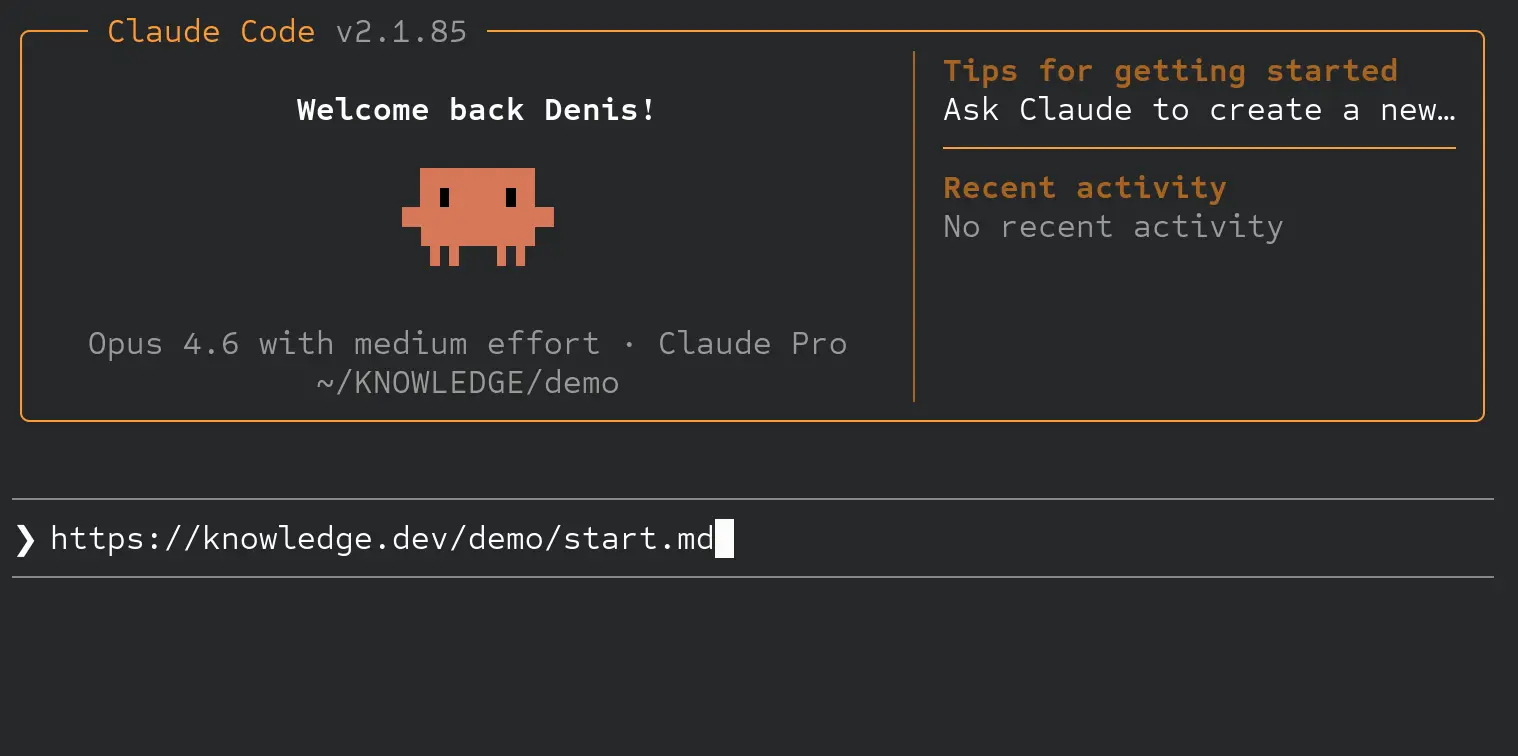
Step 3. Use an Instruction Prompt
Paste this into the agent's prompt input:
> https://knowledge.dev/demo/start.mdFor example, in Claude Code CLI it would look like this:
Step 4. Follow the AI Tutor
After that, the agent will load the playground instructions and begin interacting with you inside the session.
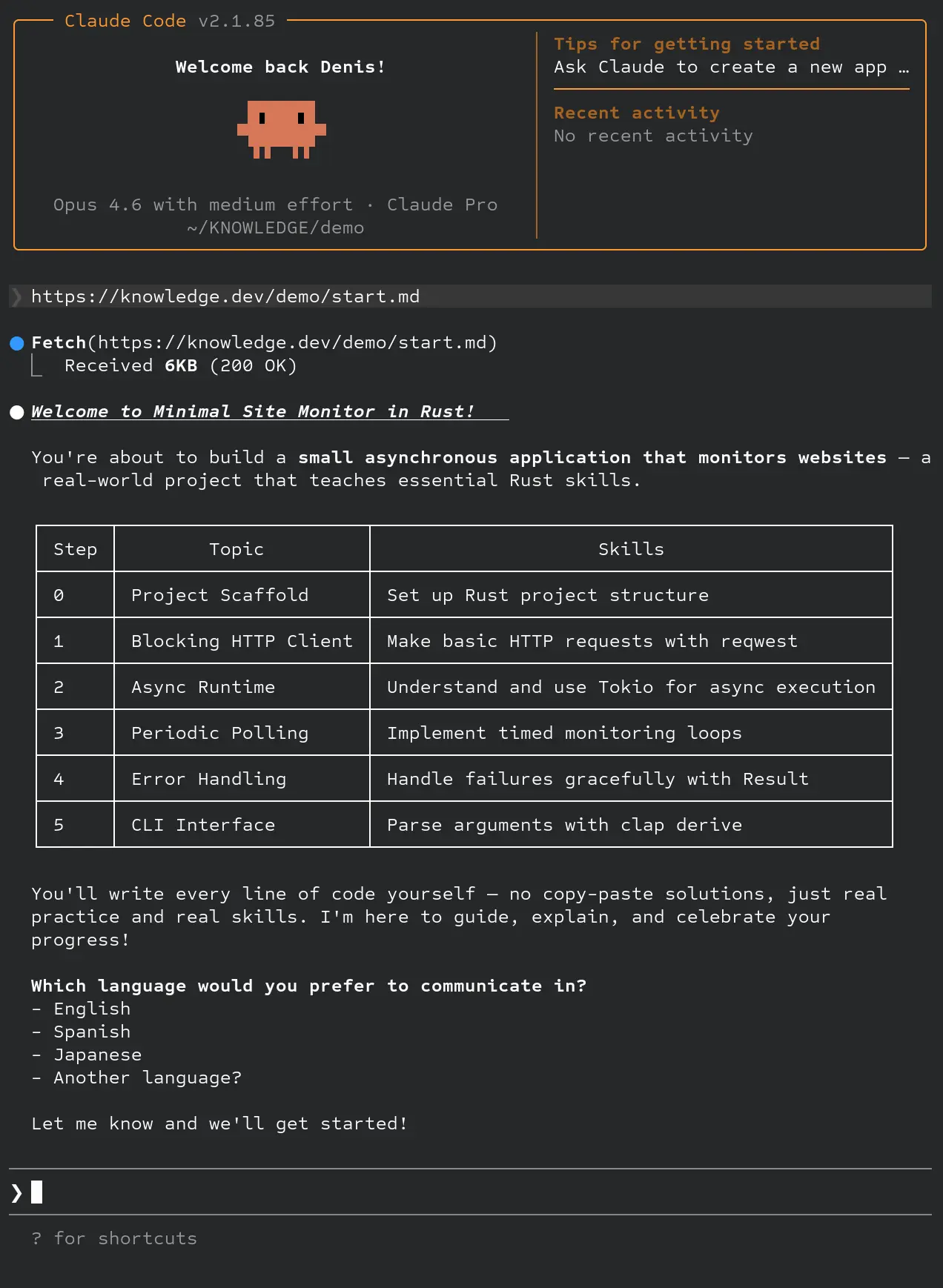
From there, follow the agent's instructions, write the code, and build the project step by step.
Limitations
This demo uses the smallest playground on purpose.
Without the local MCP workflow, the agent context can drift or break apart during the session, especially as the interaction gets longer.
For a more reliable full experience, use the installed Launcher and connect the MCP Server.
If you have questions, visit our Discord